Reporting Tool enables users to produce customised property reports for areas of interest.
For example, you can create an Excel spreadsheet that contains a list of all addresses, legal descriptions, owners, or geodetic marks within a defined area, and of a certain geographical size.
The Reporting Tool can be activated by:
- Pressing Ctrl+R
- Selecting the Find button from the Toolbar and then clicking the Report tab
- Selecting Find from the Menu Bar and clicking on Report
Step 1: Choose a Report
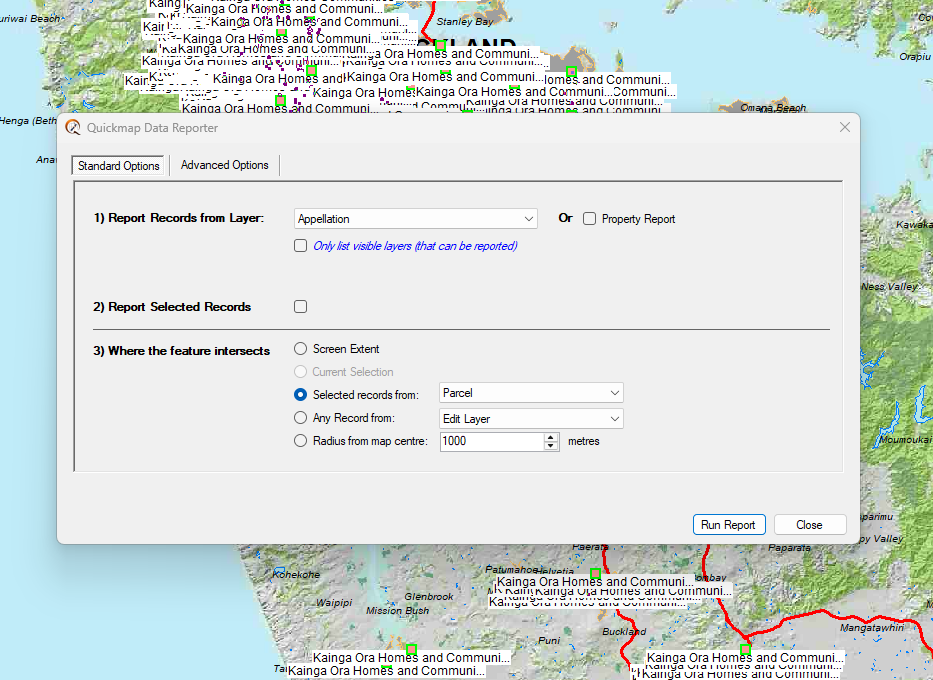
Select the report you wish to run from the Report Records from Layer drop-down list. The most common report is the Appellation Report, which reports property information. You can quickly select this by ticking the Property Report checkbox.
Step 2: Report Selected Records
This option is available if features have been pre-selected.
Step 3: Choose a Geographical Area
Constrain the report to a specific area by choosing one of the Where the feature intersects options. There are five options to choose from:
Where Feature Intersects:
| Option | Description |
|---|---|
| Screen Extent | Select features that are inside your current screen view. |
| Current Selection | Select features that are inside the currently selected feature. Note: A polygon must be selected before displaying the report form. |
| Selected Records From | Report on fields where records have been pre-selected from a layer such as Parcel or Edit Layer. |
| Radius from Map Centre | Select features within a defined radius (default 1000m) from the centre of your current map view. You can adjust the distance by typing a new value in the radius field. |
| Objects in Edit Layer | Select features that are inside all polygons currently existing in the Edit Layer. |
Step 4: Advanced Options
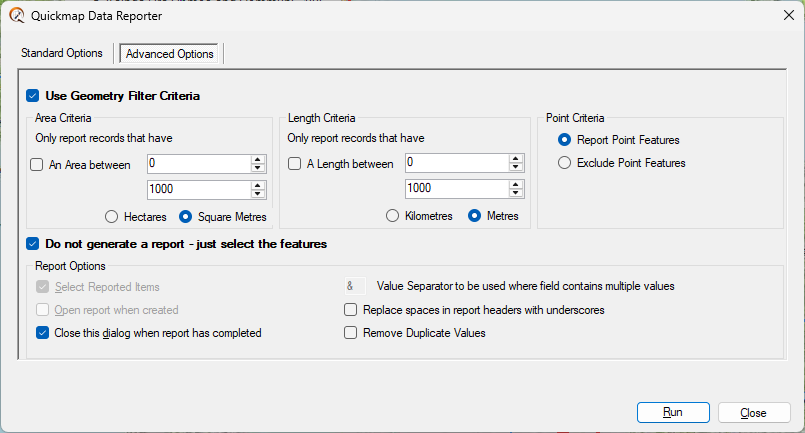
Set your advanced options. The Advanced Options allow you to refine your report or control how the report is displayed and processed:
| Option | Description |
|---|---|
| Geometry Filter | Identify parcels of a certain size within the report area. |
| Do not generate a report – just select the features | Highlights the features on the map without creating a report. |
| Select Reported Items | If checked, the reported items are displayed on the map. Unchecking this option can speed up report generation. |
| Open Report When Created | Automatically displays the report after generation.
Tip: Uncheck for large reports (over 65,000 records) to avoid Excel limitations.
|
| Close Dialog When Report Has Completed | Uncheck if you want to run multiple reports consecutively without reopening the dialog. |
| Value Separator | Defines the character used to separate multiple values in a field. For example, multiple owners in a property record. |
| Replace Spaces in Report Headers with Underscores | Removes spaces from report headers to ensure compatibility with programs that cannot handle spaces. |
Step 5: Run the Report
Click the Run Report button.
Select which Fields you want included in the report by clicking on them in the list. Highlighted fields are included; clicking again will remove them. Once all fields are selected, click OK.
A dialog box will then allow you to name and save your report.
If the advanced option Open report when created was selected at the start, the report will automatically open using the application associated with .xls files on your operating system.