Measuring Bearings, Distances, and Areas
This guide explains how to display bearings and distances, and how to use the Distance Measuring Tool to measure lines or areas within the application.
Displaying Bearings and Distances
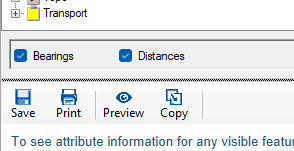
Bearing and distance display options can be enabled in the Layer Control Window.
How to Enable Bearings & Distances
- Open the Layer Control Window.
- Tick the checkboxes for Bearings and/or Distances at the bottom of the window.
- These options become active when the map scale is 1:5000 or lower.
Note: Bearings and distances shown here are not survey accurate in some instances.
For survey-accurate measurements, refer to the SurveyView layers under the
Survey Layer Control Group.
For survey-accurate measurements, refer to the SurveyView layers under the
Survey Layer Control Group.
Distance Measuring Tool
The Distance Measuring Tool allows you to measure line distances or areas directly on the map.
How to Activate the Measuring Tool
- Menu: Tools → Measure
- Keyboard Shortcuts:
- Ctrl + M — Measure Line
- Ctrl + J — Measure Area
- Toolbar: Click the Add button
How to Use the Measuring Tool
- Activate the measuring tool.
- Click on the map to digitize two or more points.
- The distance or area will be displayed on the message line at the bottom of the screen.
Note: Your screen resolution must be at least 800 × 600, and the window must be maximized to view the entire message line.
Measurement Mode Controls
| Command | Description |
|---|---|
| Esc | Start a new measurement |
| T | Toggle between Line and Area measurement |
| L | Switch to Line measurement |
| A | Switch to Area measurement |
| Shift (hold) | Show Delta measurement (North/East offset) |
| Ctrl + U | Toggle area units (Hectares ↔ Square metres) |
| Ctrl + H | Open the Latch Form |
Using the Latch Form
The Latch Form allows you to snap (latch) onto features in any layer for more accurate distance measurements.
How to Use Latching
- Ensure you are in Measure Mode.
- Press Ctrl + H or open the Latch Form.
- Tick the Latch checkbox.
- Select the feature or layer you want to latch to.
- Continue measuring — the cursor will snap to selected points for improved accuracy.
Note: The Latch Form is only available when Measure Mode is active.
Please like this page: