There are 3 ways to download data from Quickmap (in order of preference):
- Data Download Manager (Recommended)
- QDownloader.exe
- Zip file
These instructions describe how to apply a Quickmap data update using the QDownloader.exe.
Quickmap Data Download Instructions
After clicking on the download link provided by Custom Software Limited, or pasting the URL into your web browser, a webpage similar to the screenshot below will be displayed. This screen will show what you are going to download and the size of the download.
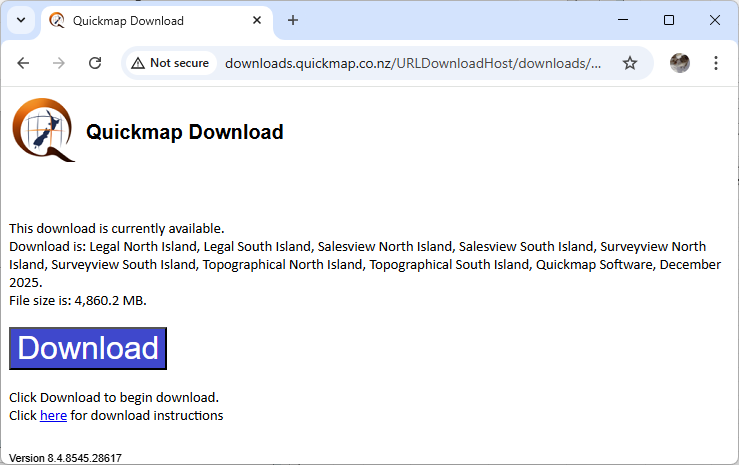
Step 1: Download
- Click the Download button.
- Run the download. Do NOT attempt to run QDownloader.exe by right-clicking and selecting “Run as administrator.” It is fine if you are already logged in as an Administrator.
Step 2: Run Installer
- Select Run.
- Wait for the download to finish. This should take around 10 minutes.
- When the download completes, you may be prompted to enter your administrator login credentials to begin the installation. Enter your credentials if necessary. The first installer form will display. Click the Next button.
Step 3: Accept License
Accept the license terms and click the Next button.
Step 4: Install
- Click the Install button.
- Wait for the install to complete.
- Click the Finish button.
Step 5: Windows Confirmation
On some versions of Windows, you may receive a message saying the program installed correctly. If this message appears, click “This program installed correctly”.
Please like this page: